How To Know If Your iPhone Is Hacked

Updated:
You may be under the impression that iPhones are the safest mobile devices on the market and with their tough stance on user privacy, Apple has worked hard to earn this reputation.
However, in January 2024, 7.5% of iPhones scanned with Certo had spyware or a tracking app installed. This unfortunately shows that they might not be as immune to hacking as some people believe.
You may think that having a strong passcode and not sharing your Apple ID is enough to protect your iPhone, but hackers have many ways to gain access to your device that bypass these security measures.
If you suspect that you’re dealing with a hacked iPhone, you’ve come to the right place. In this article, we’ll discuss the signs to look out for indicating that your phone has been hacked, as well as what you can do about it.
Table of Contents
Find out if your iPhone is hacked
Identify and remove viruses and hackers from your phone with the award-winning Certo AntiSpy.
6 Ways to Tell if Your iPhone Is Hacked
By following the steps below, you can easily and quickly determine whether your iPhone is hacked and what to do about it.
Note that some of these are not definitive signs, but rather indicators of a potential security breach.
1. Consider your battery life
It’s normal for your phone’s battery to wear down over time and become less efficient, but this usually happens over a period of years.
If you’ve only had your phone for a few months and the battery life is poor, it could be a sign that something is wrong.
A phone’s battery draining too quickly can be an indication that there are additional processes running in the background, such as a malicious app spying on your text messages and phone calls.
If spyware has been installed on your phone, it could be sending your sensitive data to a hacker. This process can lead to your battery draining faster.
To see how your battery is performing, follow these steps:
- Open the Settings app.
- Tap Battery.
- Tap the Last 10 Days tab to show the battery usage graph for the last 10 days.
- Check if there are any surges of activity that may indicate that someone has installed spyware on your device.
- Scroll down and review which apps are using your battery the most. Pay particular attention to apps that say “Background Activity”
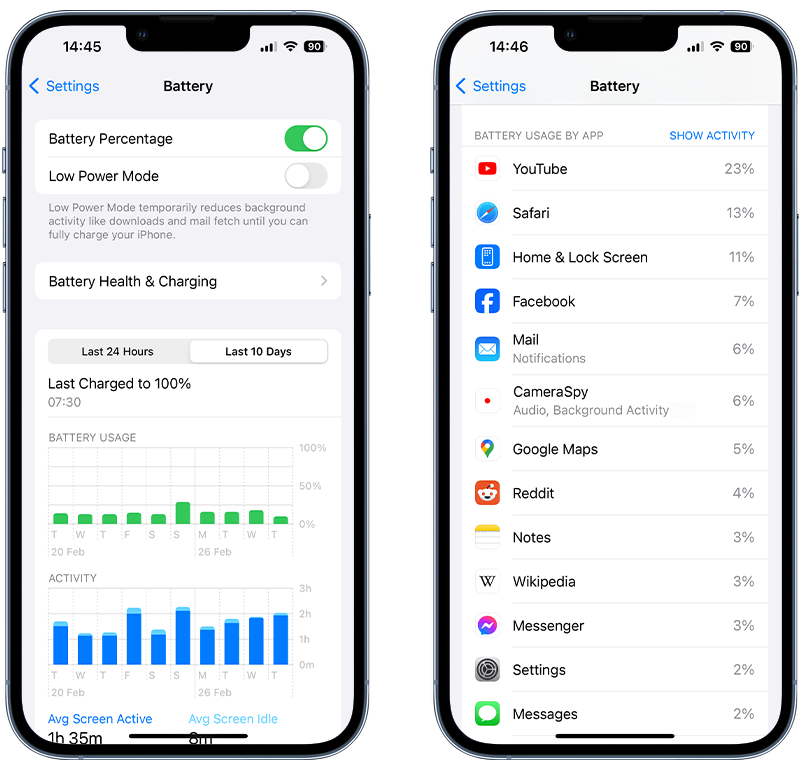
Fig 1. Reviewing battery usage on an iPhone.
2. Check for high data usage
Many of us don’t use all of our mobile data every month, but if you’ve been hitting your data usage limit on a regular basis and aren’t sure how, it might be a sign of something fishy.
If your iPhone is hacked, hidden software or malicious apps running on your device could be connecting to the internet and passing your information onto third parties, which will quickly increase your data usage.
To see how much mobile data you’re using, follow these steps:
- Go to Settings.
- Navigate to Cellular or Mobile Service.
- Scroll down to see which apps are consuming mobile data.
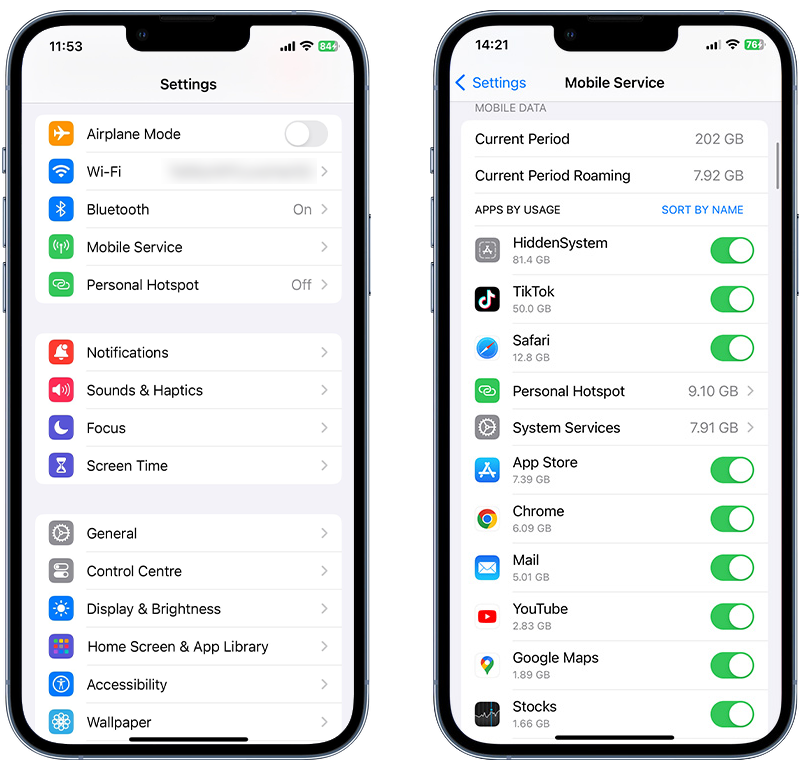
Fig 2. Checking data usage by app on an iPhone.
If you notice any apps that you don’t recognize using data, use the toggle to turn off mobile data for that app. We suggest you delete the app too, which leads us to our next point.
3. Look for suspicious apps on your phone
Be vigilant for any apps on your iPhone that you don’t remember downloading.
Hackers only need physical access to your phone for a few minutes to install spyware apps that can be used to steal your personal data, messages, and photos, and send them to another device.
Check your phone regularly for unfamiliar apps, and immediately delete any that you find. Here’s how to find and quickly remove unrecognized apps from your iPhone:
- Open the Settings app.
- Tap General then iPhone Storage.
- Scroll down to review the list of apps installed on your iPhone.
- To delete an app, tap on it then choose Delete App.
- Some spy apps can be hidden by the hacker, which means they may not appear in this list. To check for hidden apps, run a scan with Certo AntiSpy.
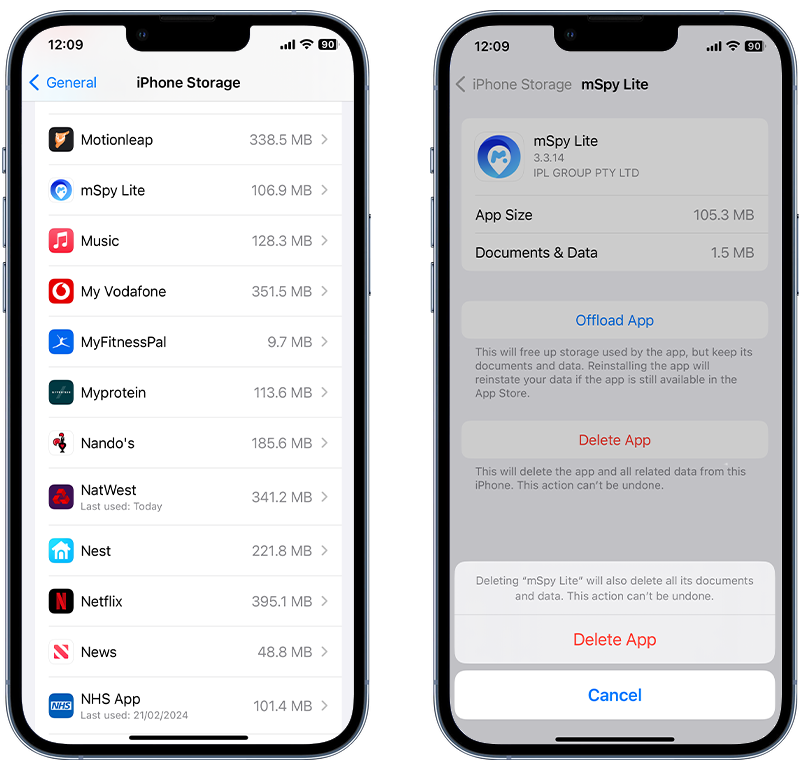
Fig 3. Finding and removing an app on iPhone.
4. Check for a jailbreak
Jailbreaking Apple devices means removing some iOS restrictions so that you can customize your phone the way you want to. Some people jailbreak their iPhones to be able to install apps that aren’t approved by Apple. Hackers have also been known to jailbreak devices in order to install spyware.
This is a little more advanced than other hacking methods, but if you’ve noticed some suspicious apps on your phone that weren’t there before (specifically apps called ‘Cydia’ or ‘Sileo’), it likely means that your iPhone is jailbroken.
Cydia and Sileo are apps that require physical access to the device in order to be installed—and if you didn’t install them, someone else did.
Jailbreaking a device opens up many options for phone hackers to retrieve data and monitor your iPhone remotely, as the iOS restrictions designed to protect your device have been disabled.
Follow the steps below to search for these apps:
- Swipe down from the middle of the Home screen.
- Type Cydia or Sileo.
- If either appear on your device, it is a pretty good sign that your iPhone has been jailbroken.
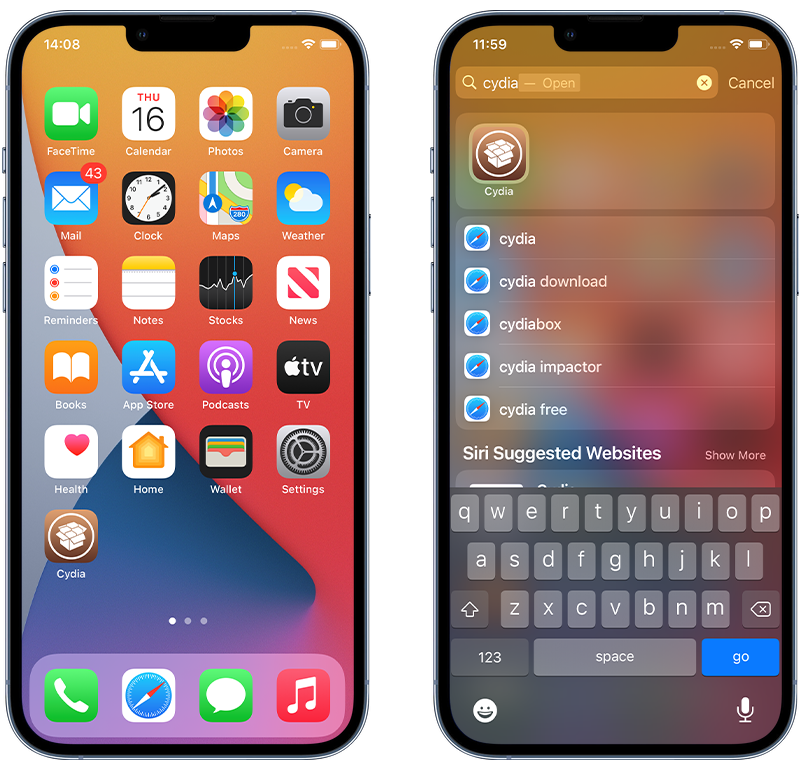
Fig 4. Finding jailbreak apps on iPhone.
5. Look for enterprise or developer apps
With iOS, it’s possible to get around Apple’s security systems by allowing a device to use ‘developer’ or ‘enterprise’ versions of apps.
These are apps that aren’t ready to be released to the public yet, or bespoke internal apps used by companies who don’t need them to be available on the App Store. However, hackers can also use these apps to get around your phone’s security system.
These apps can be installed in a number of ways, including over USB or via a custom profile installed on the iPhone. This means that the app doesn’t need to pass the strict checks of the App Store.
Hackers use this method to their advantage to install apps on phones so that they can be accessed remotely.
If you have an enterprise or developer app that you don’t remember installing on your iPhone, it’s quite possible that your phone has been hacked.
Check for any unrecognized apps by following the instructions in Step 3. You can also check if a developer app has been installed on your iPhone by following these steps:
- Open the Settings app.
- Tap Privacy & Security.
- Scroll to the bottom and check if Developer Mode is turned on. If it’s on but you didn’t do this yourself then it’s possible someone has installed a developer app without your knowledge.
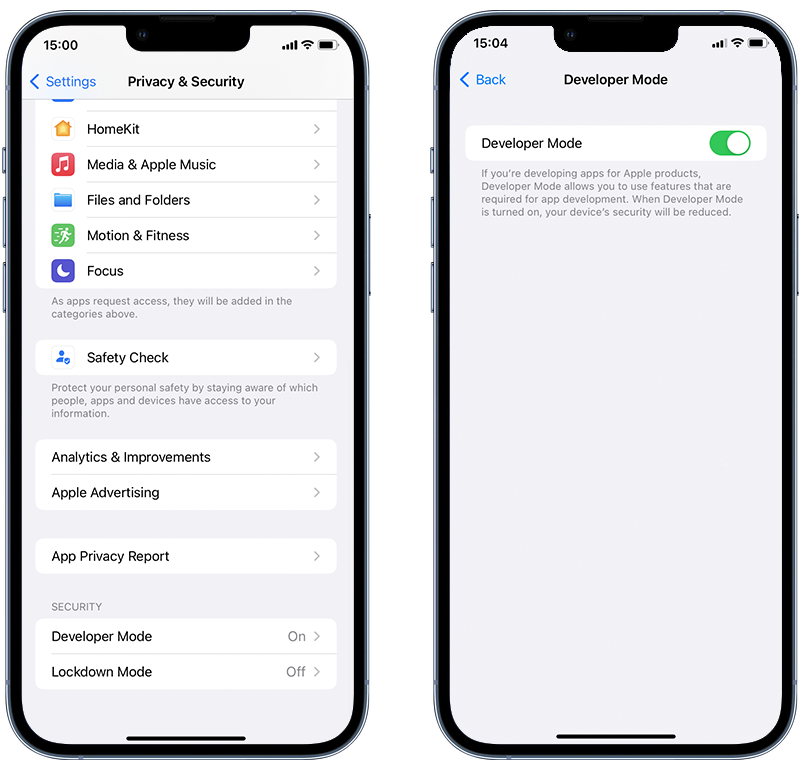
Fig 5. Checking if Developer Mode is enabled on an iPhone.
6. Run a malware scan
The best way to determine if your iPhone is hacked is to run a malware scan.
Antivirus apps for iOS are quite limited, as Apple’s operating system doesn’t allow them to access areas of the device where malware typically hides.
However, alternative tools are available that allow you to perform a full malware scan by connecting your iPhone to your computer.
We recommend Certo AntiSpy, the award-winning anti-spyware tool for iPhones.
The software will scan your iPhone for suspicious apps and malware. It will also check to see if your device has been jailbroken. If security threats are found, you can remove them with just a tap.
Here’s how to run a scan:
- Download and install the Certo AntiSpy app on your computer.
- Plug your iPhone into your computer with a USB cable.
- Click Scan.
- Tap Remove next to any threats.
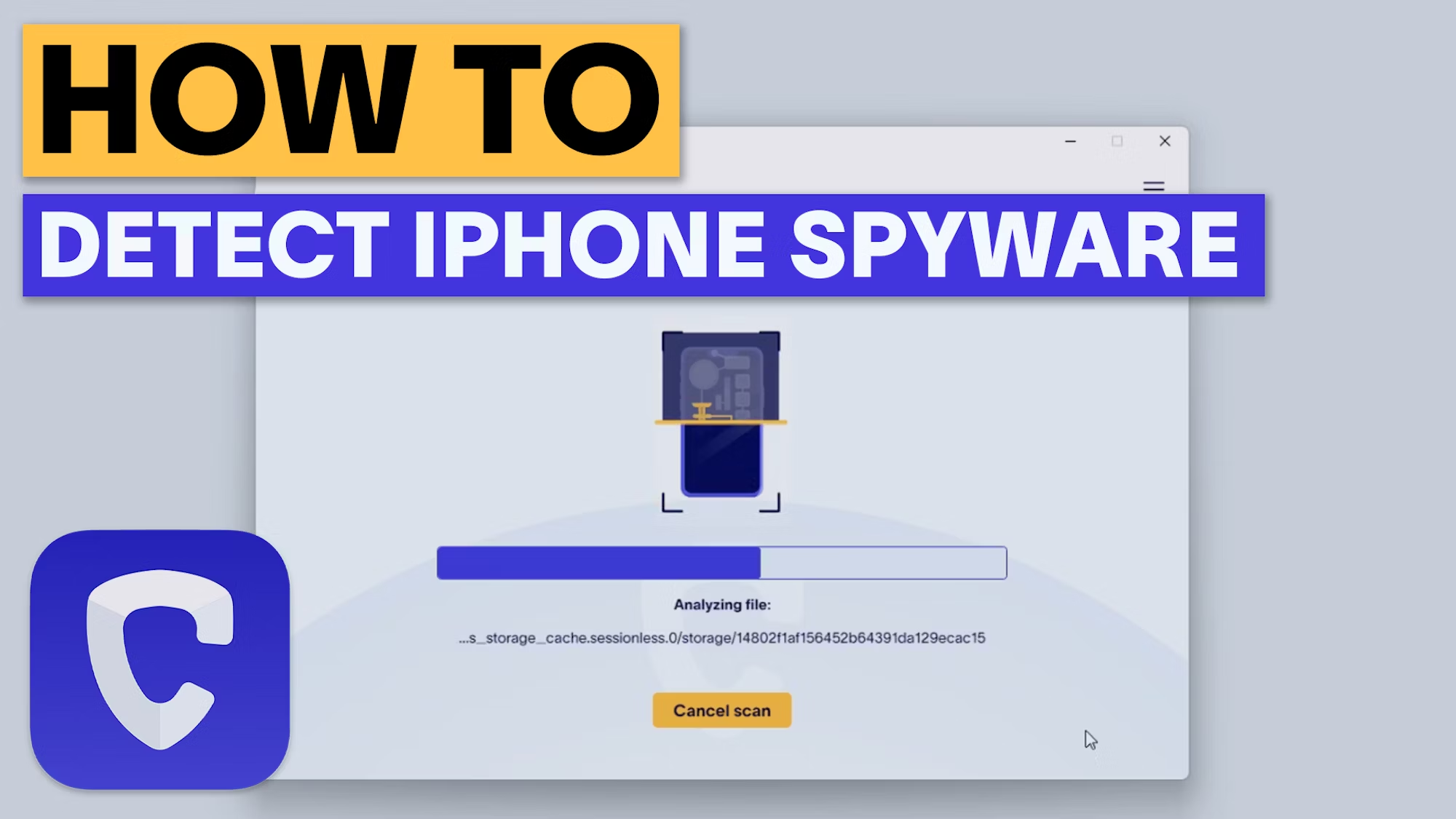
Watch the video below to see how it easy it is to run a malware scan with Certo AntiSpy:
How Do iPhones Get Hacked?
Many iPhone users believe that their Apple product is safe from hacking. But there are a number of ways you can fall victim to phone hacking, including:
1. Clicking suspicious links
While Apple and other tech companies work hard to implement virus and malware protection into their operating systems, these measures don’t provide much security when users manually follow a suspicious link.
These can be designed by a hacker to obtain your private information. Avoid links with strange spellings, odd-looking logos, and any that aren’t secure—especially when using public Wi-Fi networks, which are more vulnerable to attacks.
A common strategy phone hackers use involves attempting to impersonate a well-known brand that you’re likely to trust without much thought.
They’ll set up a website and copy the design of the brand, then host it on a URL that’s almost identical to that of the company they’re attempting to copy.
The site will then coerce you to click on one of these malicious links, allowing the hacker to gain access to your personal or financial information and other login credentials.
👉 Top Tip: Check URLs Carefully
Always double-check the URL of any website you visit. If it seems suspicious, it most likely is. Before following any links you don’t recognize, check that the URL is spelt correctly and that you can easily find it by searching online.
Another tip is to use a virtual private network (VPN) when browsing to protect your personal information and make your phone less vulnerable to attacks.
2. Targeted attacks
Often, we think of being hacked as something you may fall victim to by chance. But this ignores the existence of targeted attacks, which happen frequently.
A targeted attack is an invasion of privacy by a virus or malware directed at a specific person.
People who could be attacked in this way include those in the public eye or those with an ex-partner or controlling spouse with direct access to their phone. It can, however, happen to anyone at any time.
3. Downloading malicious apps
There’s no doubt that Apple does a good job of monitoring the App Store and is renowned for its strict guidelines on who and what is allowed to be published. But it’s inevitable that some things may slip through the cracks.
Most of the time, it can be pretty easy to determine whether an app is trustworthy or not. A particularly slow app with an outdated look or one that has obvious glitches shouldn’t be trusted, especially if it’s requesting access to your phone’s camera, microphone, and location.
Be sure to check reviews before you download apps from the App Store and delete any apps that make you question their trustworthiness.
4. Using weak passwords
Websites that you visit and log in to frequently—whether for social media, a work platform, or another purpose—should be accessed using a secure and unique password.
Many people tend to opt for a password that they can quickly and easily log in with, and often use the same one for a number of places online.
When creating new online accounts, do your best to avoid the urge to simply recycle a version of your go-to password, as this puts you at risk of being hacked. Instead, choose complex passwords that contain a combination of uppercase and lowercase letters, numbers, and special symbols.
You could also consider using a secure password manager, such as NordPass which generates and remembers different passwords for you and is accessed via just one ‘master password.’
Finally, if an app offers two-factor authentication, it’s highly recommended to opt for it.
This requires you to input both your password and another piece of information to access an account. This could be a verification code sent to your phone by text message, or Face or Touch ID.
This advanced verification process makes it much harder for hackers to access your device.
5. iCloud hacking
If someone can access your iCloud account, they may be able to steal any data synced to your account from your iPhone. This could include iMessages, notes, photos, videos, and your contacts.
iCloud security has improved a lot in recent years, but if a hacker can break in they could download a vast amount of data held in your iCloud account.
If you also backup your device to iCloud, a hacker with access to your account could also access this backup.
Wrapping Up On iPhone Hacking
Many people think that having an iOS device means you have the best security in place. However, according to our own data, iPhones are still vulnerable to hacking in the form of spyware and tracking apps.
Whether it’s through a targeted attack or accidentally downloading malicious software, it’s possible for hackers to access your phone.
Now that you know how hackers can access your iPhone and what this does to your device, you can take steps to safeguard your phone.
Download our award-winning anti-spyware app to detect malware and protect your iPhone against security threats
Stop hackers for good
Combat spyware and cyber threats with Certo AntiSpy, the world's leading anti-spyware tool for iPhones.
Fueled by his passion for technology, Chris leverages his expertise to raise awareness about the evolving cyber threats in the digital landscape. With an in-depth understanding of tech trends and consumer behavior, he's committed to making the digital world safer for everyone.