How Legitimate Apps Could Be Used to Spy on You

Published:
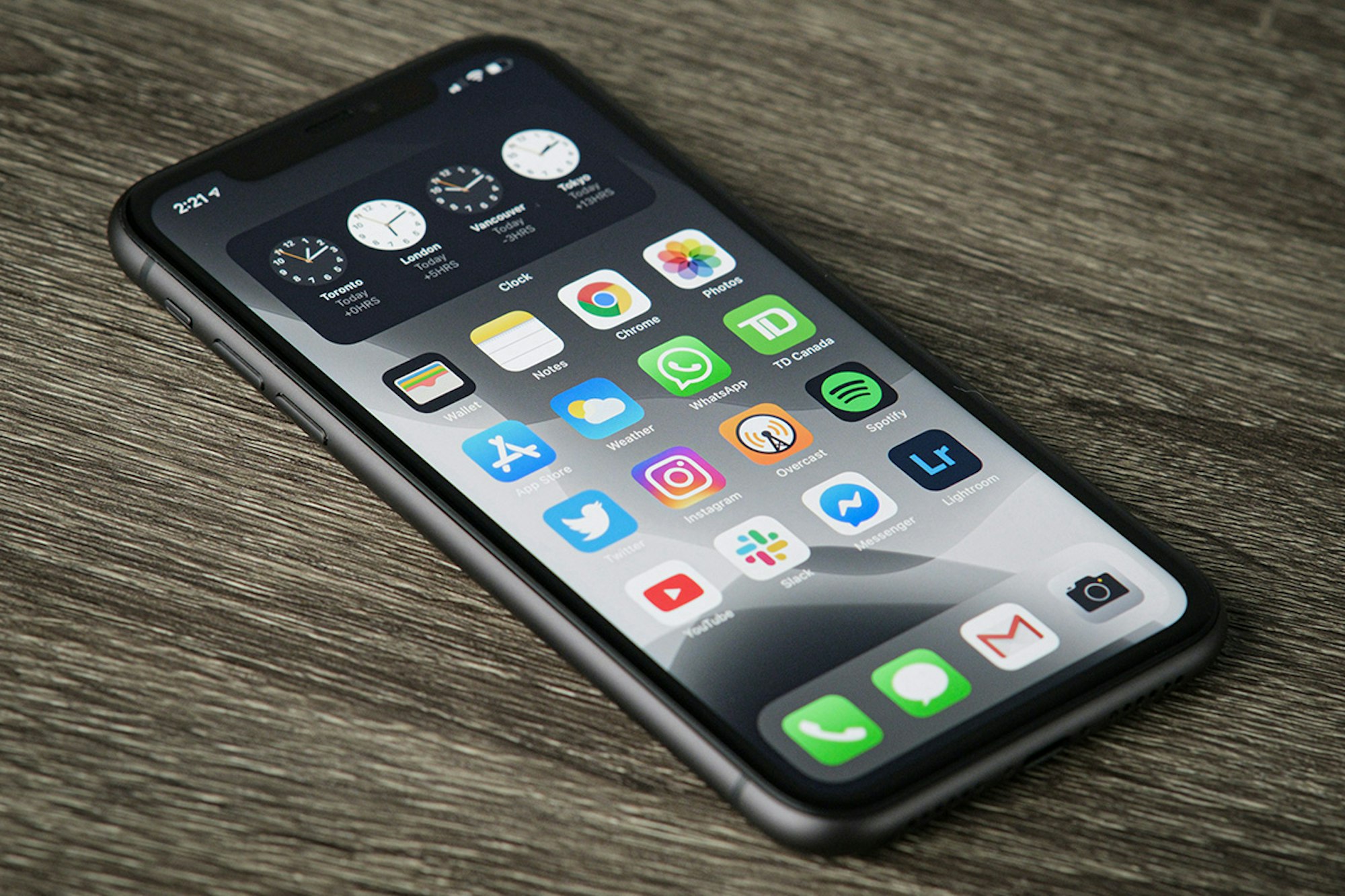
We’ve talked at length on this blog about the various ways hackers can launch attacks against your private data by exploiting weaknesses in your device’s system. What we’ve not really spoken about, however, is how the apps that you use every single day can also be used to spy on you.
Lots of apps have in-built features that allow you to share information about yourself. This could be broadcast publically, or privately, to friends and family. Although these features/apps all have legitimate intentions (e.g. parental monitoring), they can often be misused to spy on someone without their permission.
Let’s take a look at these apps, how their features can be exploited to help hackers spy on their victims and how you can check the settings on these apps.
Free mobile security with Certo
Download Certo Mobile Security on iPhone or Android for free and protect your device from cyber-attacks now.




1. Google Maps
Google maps is one of the most widely used mapping apps. Lots of people don’t realize however, that Google Maps contains a feature to share your location with one or more of your contacts. This can be done on a one-off basis or can be set up to continuously ping your location back to a contact’s device. It’s not hard to see how this could be abused by a snooper, they can essentially ‘watch’ you go about your day via their device.
How to stop sharing your location in Google Maps:
- On your device, open the Google Maps app.
- Tap the Account Circle in the top right.
- Tap Location sharing.
- Remove any accounts you are sharing your location with.
2. Apple’s ‘Find My’ app
This app has a feature designed specifically to share your location with your trusted friends and family contacts. It’s designed to help parents keep an eye on their children or for partners who want to check-in on their loved ones to ensure they got to that meeting safely. Alternatively, it can be used simply for friends who want to keep tabs on each other to ensure everyone gets home safely after a night out.
It has many innocent and legitimate uses. However, this app is extremely easy for someone to manipulate and set up for their own nefarious uses if they can get hold of your phone.
How to stop sharing your location in Find My:
- On your device, open the Find My app.
- Tap Me.
- Turn off Share My Location.
3. Other apps sharing your location
There may also be other legitimate apps on your phone that could (unbeknownst to you) be sharing your location with someone else. Ideally, you should check each app and decide for yourself if you want that app to have access to your GPS location, as for many apps, this may not be necessary.
To check location services for apps on your iPhone:
- Navigate to Settings > Privacy > Location Services.
- Make sure Location Services is turned on if you want to use apps such as Uber or Maps.
- Scroll down to view a list of all the apps on your iPhone and tap them to view and change their permissions.
To check location services for apps on your Android:
- Download the free Certo Mobile Security app to see a list of what apps have access to your location and other sensitive data on your device.
4. Apple iCloud
Everyone loves iCloud. It helps us keep a hold of those precious moments in life and ensures that we don’t lose them if the worst happens. But what if your iCloud account could be used to spy on you?
You might be surprised to know that there are a few potential ways that a stalker could manipulate your account to breach your privacy.
The first thing they could do is download your data from the iCloud website. If they know your details, it doesn’t take long to get access to your iCloud data such as your photos, contacts, messages, along with your device’s location and calendars. Or, if you backup to iCloud, they could even download a complete copy of your phone.
How to ensure that your iCloud account is secure:
- The first step is to obviously change your password, but the most important thing is to ensure that you aren’t sharing your password with anyone that you don’t trust.
- Secondly, if you haven’t done it already then make sure Two-Factor Authentication is enabled for your Apple ID. This will stop anyone from being able to access your account even if they work out your password.
- You can also follow the instructions on this page to see on which devices your Apple account is logged in.
5. Google Chrome
As smartphone users, we share a vast amount of information with Google and other companies that make browser apps. One simple way that a stalker could gain access to your internet browsing habits (along with usernames and passwords) is to change the account to which you are logged in within Google Chrome.
If the stalker created a new Google account and simply switched your browser to be logged into that account, they could easily keep track of the websites you visit, view saved passwords and frequently entered information.
This all has the potential to be done fairly silently and without the user’s knowledge – especially if they are not particularly tech savvy.
It’s also fair to say that this method can also be used for any browser that has the capability for user accounts – Firefox, Opera, etc.
How to ensure that your Google account hasn’t been changed in Chrome:
- Open up Chrome.
- Tap the 3 dots.
- Tap Settings.
- From here you can view your account and see if it has been changed. Be aware that a stalker could use an account with an email address that looks almost exactly the same, so it pays to double check this.
So as you can see, it’s not always necessary for someone to install spyware onto your phone in order to spy on it. This is especially true if they are more informed about technology and know some of your personal details (logins, passcodes, etc).
That’s why it’s so important to keep your passwords private and not to share your details with anyone if you want to retain your privacy when it comes to personal data.
Award-winning mobile security
Download Certo Mobile Security on iPhone or Android for free and protect your device from cyber-attacks now.
Content writer for Certo Software and a fervent privacy advocate, Catherine marries her passion for technology with a deep commitment to cybersecurity. Her work is not only informative but also serves as a guidepost in our journey towards a safer digital world.